
Dental Lab Insights for Custom Shade Matching
Custom Shade Guide from a Dental Lab
In the past, when photography was limited and smartphones did not exist, I would send a ceramist to the dental office for complex custom shades. At the chair, we documented everything manually—incisal translucency, enamel layering, mamelon characterization, and specific porcelain powder selection. While effective, this approach depended heavily on individual interpretation, required travel time, and often disrupted lab production. Today, with a modern smartphone such as an iPhone 15 or newer, I can capture significantly more accurate and consistent shade information directly from the patient chair. With proper lighting, neutral backgrounds, calibrated shade tabs, and correct angulation, clinicians can document value, chroma, translucency, and surface texture with precision. This improves communication and reduces remakes. It also saves resources—dentists no longer need to pay for custom shade visits, and the dental lab no longer needs to pause workflow and travel to the office.
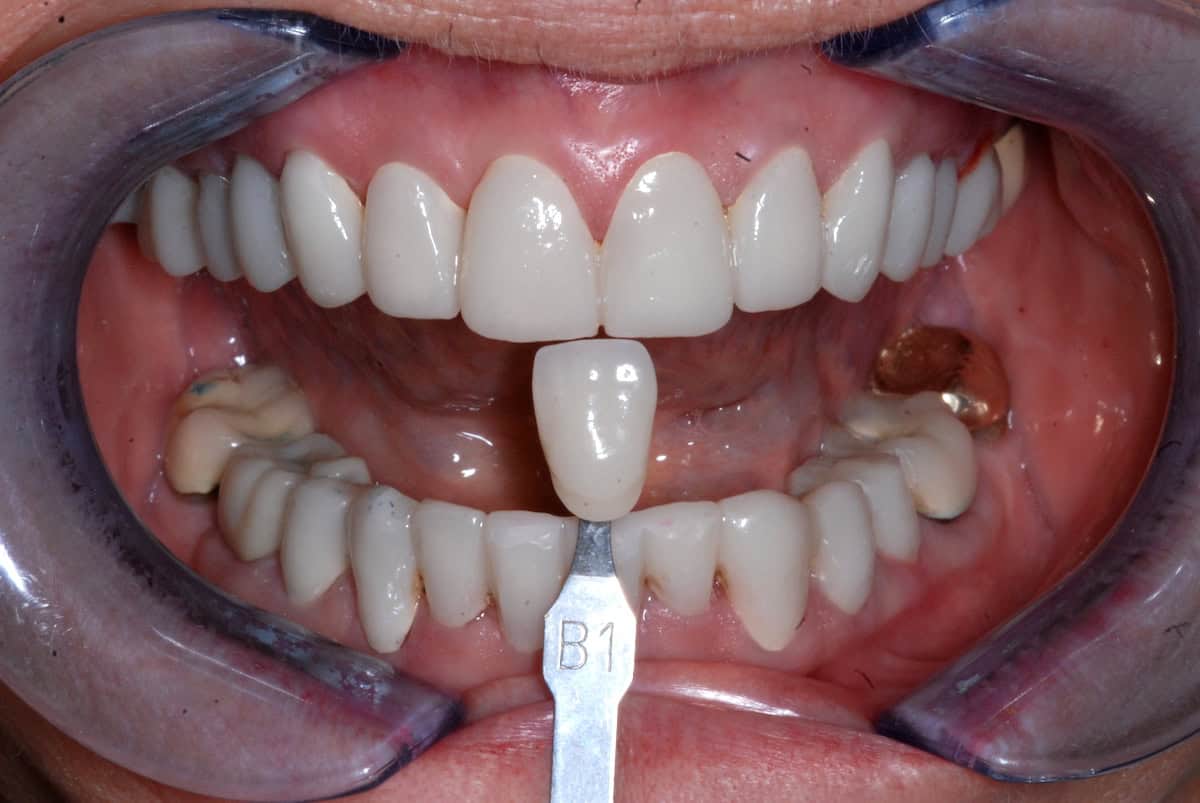
How to Take an Accurate Custom Shade for Dental Lab Communication
Use Correct Lighting (Non-Negotiable)
Avoid operatory light. Use natural daylight or a color-corrected light (around 5500K). Turn off overhead lights. Wrong lighting = wrong value.
Neutral Background Only
Remove bright clothing and makeup. These will distort shade perception and affect accuracy.
Clean and Hydrate the Tooth
Remove debris and plaque. Do not overdry. Dehydration increases the value and leads to brighter, inaccurate shades.
Select Shade Quickly
Teeth fatigue your eyes fast. Pick a base shade within 5–7 seconds. Trust the first visual impression.
Use Calibrated Shade Tabs
Always use the same system (VITA Classical or 3D-Master). Do not mix brands. Place the tab parallel to the tooth, in the same plane. If using a different shade system, include the physical shade tab with the case or take clear photos of the selected tab next to a standard guide (VITA or 3D-Master) for reference.
Take Required Photos (Minimum Set)
- Full face smile
- Retracted frontal (with shade tab)
- Retracted lateral
- Close-up of prep/tooth
- Incisal edge view
Do not use digital zoom—use optical zoom only. Photos must be in focus, with no filters or HDR (High Dynamic Range).
Document Characterization
If you see special details, note them simply. For example, is the edge more transparent or solid? Are there natural lines or patterns inside the tooth? Is there a bright white line at the edge? Any white spots or stains? Is the surface smooth or slightly textured? Photos help, but a few clear notes make sure I don’t guess.
Control Angulation
The camera lens must be perpendicular to the tooth. No tilt. Distortion changes perceived shade and shape.
Pick 2–3 Closest Shades and Photograph
Select 2–3 closest shade tabs, not just one. Place each tab next to the tooth and take photos from the front and both sides. Make sure the shade label (e.g., A1, B1) is clearly visible in the photo.
Send Photos via Dropbox
Email the photos to our Dropbox. If you do not have the Dropbox email address, call us, and we will provide it. For privacy, we do not list the email address here.
How to Upload to Dropbox
Download the Dropbox app (iPhone or Android) or go to dropbox.com. Sign in or create a free account. Tap “Upload” (or “+”), select your photos, and upload in original quality (no compression). Once uploaded, share the files to our Dropbox email address. If unsure, call us—we will walk you through it.
Practice with Your Team
We strongly recommend practicing with your staff before submitting live cases. Take sample photos and send them to us for evaluation and feedback. This helps ensure consistency, reduces remakes, and allows your team to calibrate quickly.
Even for Simple Shades, Send Photos for Anterior Cases
Even for simple shades, we strongly prefer photos for all anterior restorations. Small variations in value, translucency, and surface texture are critical in the esthetic zone, and photos help ensure accuracy and reduce remakes.
How to Use a Smartphone Camera for Custom Shade Photos
Clean the Camera Lens First
Wipe the phone camera lens with a clean cloth before taking photos.
Use the Regular Camera App
Do not use Instagram, Facebook, Snapchat, or any app with filters.
Turn Off Flash
Do not use camera flash. Flash changes the tooth color.
Turn Off HDR or “Auto Enhance”
HDR and enhancement settings change brightness and color. Keep the image natural.
Use 2x or 3x Optical Zoom
Use optical zoom if your phone has it. Do not pinch the screen to zoom.
Tap the Tooth to Focus
Before taking the photo, tap the tooth on the screen so the camera focuses correctly.
Lower Brightness if Too White
If the tooth looks too bright, slide exposure slightly down before taking the photo.
Hold the Phone Straight
Keep the phone level and directly in front of the teeth. Do not angle the phone up or down.
Take Several Photos
Take multiple photos. It is better to send too many than too few.
Understanding Dental Shade Matching
VITA Classical Shade Guide
- A = Reddish Brown (most common)
- B = Reddish Yellow
- C = Grayish Shades
- D = Reddish Gray
Common VITA Classical Shades
- A1 = Light reddish-brown
- A2 = Medium-light reddish-brown
- A3 = Medium reddish-brown
- A3.5 = Darker A3
- A4 = Dark reddish-brown
- B1 = Very light reddish-yellow (commonly perceived as bright)
- C1 = Light gray
- C2 = Medium gray
- D2 = Light reddish-gray
Clinical Shade Selection Tips
When taking a custom shade, determine the closest base shade first. Then evaluate translucency, incisal effects, and characterization.
VITA 3D-Master Shade Guide
The VITA 3D-Master system is organized by:
- Value (brightness)
- Chroma (saturation)
- Hue (yellow/red shift)
Common VITA 3D-Master Shades
- 1M1 = Very light, neutral
- 2M2 = Medium light, neutral
- 3M2 = Medium value, neutral
- 4M2 = Darker value, neutral
- 2L1.5 = Slight yellow tendency
- 2R1.5 = Slight red tendency
3D-Master Training Protocol
- Select VALUE first (1, 2, 3, 4, or 5)
- Select CHROMA second
- Select HUE last (L, M, or R)
Recording Anterior Custom Shades
Essential Shade Characteristics
For every anterior custom shade, record the base shade and the following characteristics:
Base Shade Examples
- A2
- 2M2
Additional Information to Record
- Incisal translucency: Low / Medium / High
- Mamelons: None / Mild / Strong
- Halo: None / Mild / Strong
- White spots: Yes / No
- Surface texture: Smooth / Medium / Heavy
Example Custom Shade Prescription
Sample Prescription
Clinical Note:
For younger patients, the natural tooth shade is often very close to a standard shade guide tab and may require minimal characterization. As patients age, teeth typically develop more translucency, internal color variation, surface texture, and incisal effects that should be documented during the custom shade process.
- Base Shade: A2
- Incisal: Clear translucency 1–2 mm
- Mamelons: Mild orange
- Halo: Light white halo
- Surface Texture: Medium
- Clinical photographs attached
Advanced Custom Shade Example
- Base Shade: 2M2
- Incisal: High translucency 2–3 mm
- Mamelons: Strong orange-amber
- Halo: Moderate white halo
- White Spots: Present on mesial incisal third
- Surface Texture: Heavy
- Clinical Photographs: Attached
Additional Notes:
- Patient is 22 years old. Natural dentition closely matches the shade guide. Minimal internal characterization required.
- Patient is 58 years old. Significant age-related characterization present. Match adjacent natural teeth rather than relying solely on the shade guide.
Why This Matters for Your Dental Lab Results
About 50% of remakes and chairside adjustments are caused by incorrect or incomplete shade communication. This is largely preventable. With a small amount of additional effort—taking proper photos, using consistent lighting, and providing clear shade information—you can significantly improve case accuracy. This reduces the inconvenience of bringing patients back for adjustments, saves valuable chair time, and improves overall workflow for your team. It also helps avoid unnecessary costs associated with remakes and delays. From a dental lab perspective, accurate input is critical to achieving predictable esthetic results. When shade, texture, and characterization are clearly communicated, the dental lab can deliver restorations that require minimal to no adjustment. Strong communication between the clinic and dental lab is what separates inconsistent results from reliable, high-quality outcomes every time.